Level Creation on Mobile
Tutorial created by mxx987. Refined and edited by tasty kiwi.
Before starting
You should have an easily accessible PewPew Live account. Creating levels on mobile is not possible without a PPL account.
If you encounter an error message like Error: Error: manifest.json not found, it could be due to the browser you’re currently using not being able to upload folders or a bug in your manifest.json file. If you’re certain that your manifest.json file is correct, try using a different browser.
Setting up
Before doing anything, you should install these apps and things. Some of them are not necessary, but it would make level making more convenient.
- Install the ppl-utils level samples. This is the “levels” folder, and you should install them to make level creation more convenient. You can see examples of levels and use code from them. You can get it here.
- Install any file manager app. This is necessary to create levels on mobile devices because without it, you can’t change the name, file type, or view your code. So, it’s better to get one.
- Install QuickEdit. Google Play | App Store
Coding the level
- Open any file manager application.
- Copy the
sample_advanced_levelor any other sample level. - Rename the copied folder to something that matches your level name.
- Open any text editor or app (such as QuickEdit).
- Start coding your level.
- If you have any questions, ask in the Discord server.
- Read the documentation.
- Complete your level.
Final touches
Now that you've created your first level, we should change the manifest.json code to name your level. The code should look like this:
{
  "name": "Your level", // level name
  "descriptions": ["descriptions goes here"], // level description
  "information": "information goes here", // level information
  "entry_point": "level.lua", // don't change this!
  "has_score_leaderboard": true, // if the level is casual or has leader boards
  "rank_thresholds_1p": { "bronze": 3500, "silver": 6000, "gold": 9000 } // score needed to get bronze, silver, gold
}
Change it to fit your level's needs.
Uploading the level
Now that we’ve completed our level, we need to test it and upload it once we’re done.
-
Go to the PewPew Live website and sign in with your account.
-
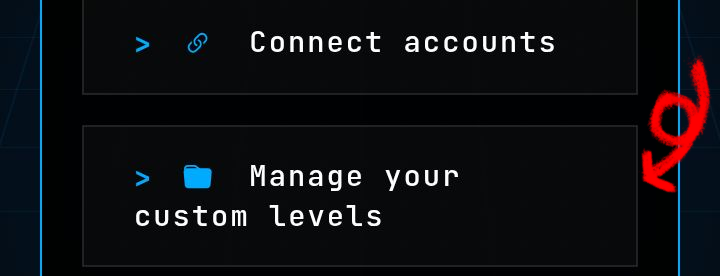
Navigate to the Manage your custom levels section.
-
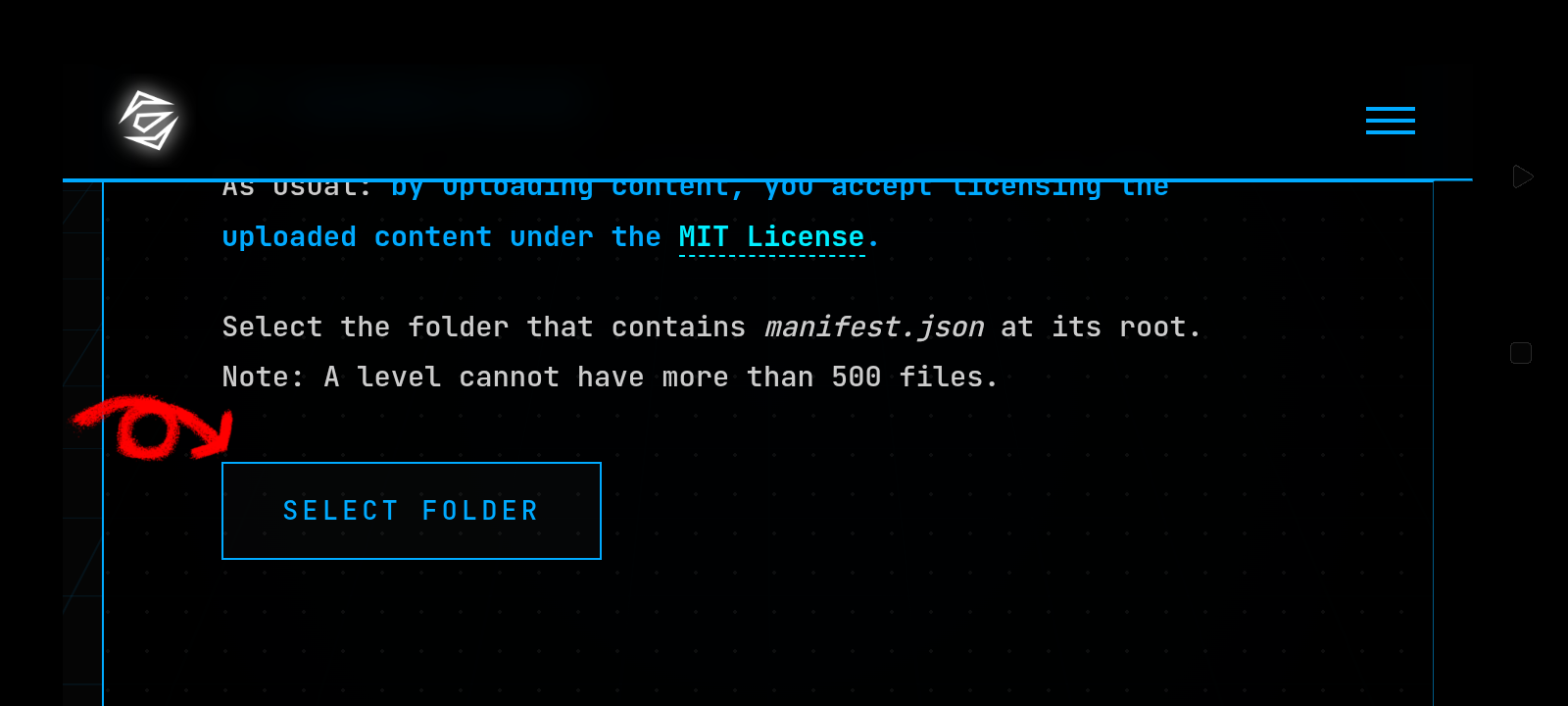
To create a new level, click on the Select Folder button and select your level folder in the files app.
-
To update an existing level, go to your level name and tap Manage, then scroll down to the Update Level section and click on the Select Folder button to select your folder.
-
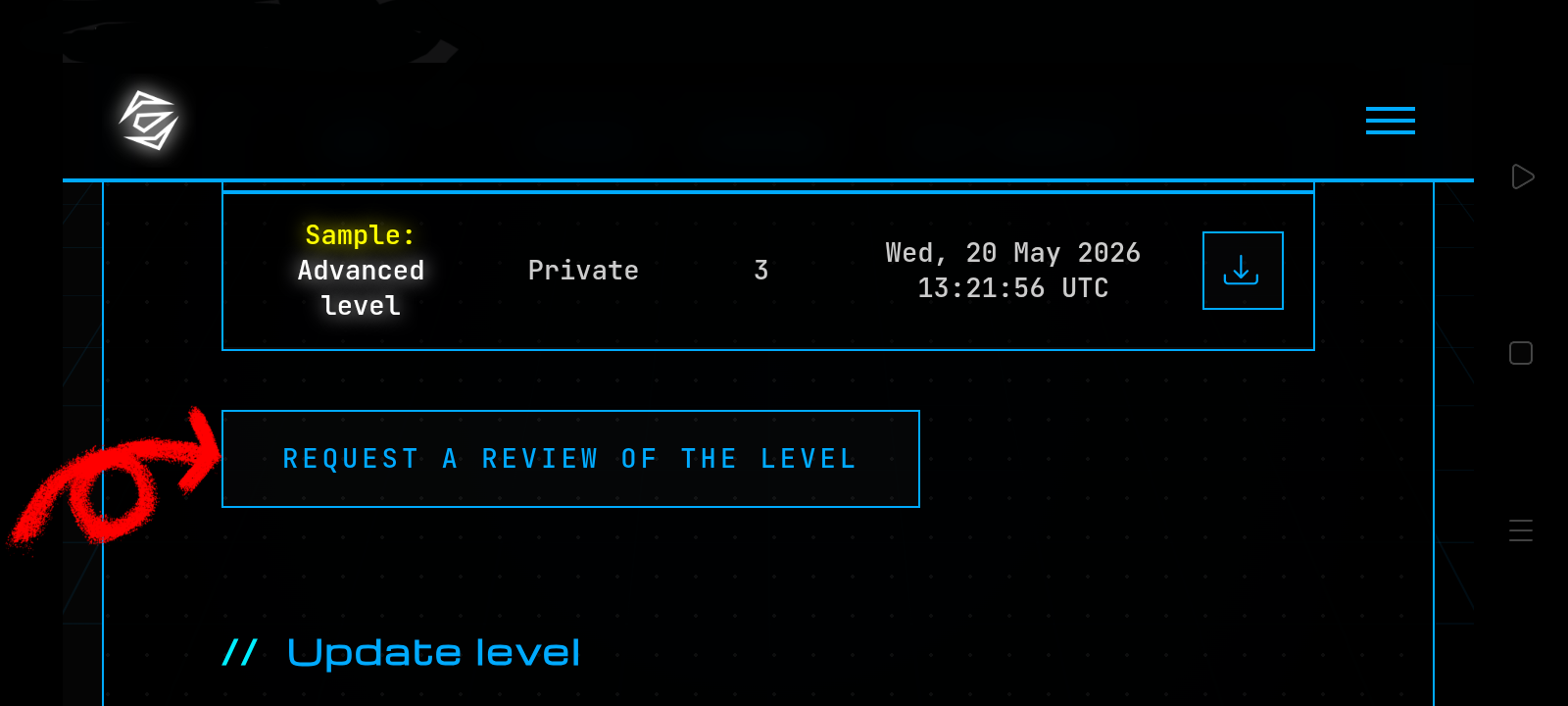
To upload your level to the community, go to the manage your level page, scroll down to the Stats section, and click on the Request a review of the level button.
-
Wait for the review process to be completed. This may take some time, so be patient.
You can find your level on the Experimental tab. If your level appears blank or doesn’t have any information, it usually indicates that the level code is broken.
Congratulations! You have successfully made your (maybe) first level, and without PC, you can now play it and have fun, try to improve your levels, and don't be shy to try to get feedback.